


はじめに
「メールを送って」「今日の予定を確認して」「〇〇さんの連絡先を更新して」——こうした日常的なタスクを、Telegramから話しかけるだけで自動実行できたら便利だと思いませんか?
本記事では、n8nを使って、Telegramから音声やテキストで指示を出すと、複数のAIエージェントが連携してタスクを実行する「究極のパーソナルアシスタント」を構築します。
このシリーズは前編・後編の2部構成です。
- 前編(本記事): Telegramとn8nを連携し、音声・テキスト入力を処理する基盤を構築
- 後編: 4つのAIエージェントを構築し、メール・カレンダー・連絡先・コンテンツ作成を自動化
前編を終えると、Telegramからのメッセージを受け取り、処理して返答する「土台」が完成します。
すでに前編を読み終わり後編をお探しの方はこちらから閲覧出来ます。

完成イメージ
前編で構築する範囲は、Telegram Triggerから音声文字起こし・メモリ設定・Responseまでの「親ワークフロー」部分です。
こんなシーンでの活用に適しています
- Telegramをビジネス用メッセンジャーとして活用している
- 移動中や手が離せないときに、音声でサッと指示を出したい
- 複数のツール(メール、カレンダー、連絡先など)を一元管理したい
方法: n8n × Telegram × OpenAI × マルチエージェント
| メリット | マルチエージェント構成: 1つの親エージェントが4つの専門エージェントにタスクを委譲 音声・テキスト両対応: 移動中も音声で指示可能 会話履歴保持: 文脈を理解した連続指示に対応 ノーコード: プログラミング不要で構築可能 |
| デメリット | 複数サービスの設定: Telegram、OpenAI、Gmail、Google Calendar、Airtable等の認証が必要 APIコスト: OpenAI API等の従量課金あり |
| 難易度・面倒さ | 難易度:★★★☆☆(中級) 前編・後編合わせて約90分 |
| 特徴 | 4つの専門エージェント(Email / Calendar / Contact / Content Creator)を統括 Tavily連携でWeb検索も可能 |
| 価格 | n8n: セルフホスト無料 / クラウド版€20〜 OpenAI API: 従量課金 Tavily: 無料枠あり 合計: 無料〜月数千円で運用可能 |
4つの専門エージェント
| エージェント | 主な機能 |
|---|---|
| Email Agent | メール送信、返信、下書き作成、ラベル付け、既読/未読管理 |
| Calendar Agent | イベント作成・更新・削除、スケジュール取得 |
| Contact Agent | 連絡先の取得・追加・更新(Airtable連携) |
| Content Creator Agent | Web検索+ブログ記事生成(HTML形式) |
ユースケース例
- 「今夜6時に〇〇さんとミーティングを設定して、確認メールも送って」
- 「〇〇さんからの最新メールに返信して」
- 「今日の空き時間を〇〇さんにメールで送って」
- 「〇〇についてのブログを書いて、下書きメールにして」
事前準備
以下のアカウント・環境を用意してください。
- n8nアカウント(クラウド版 または セルフホスト版)
- Telegramアカウント(スマートフォンでアプリ設定が必要(電話番号の入力あり))
- OpenAIアカウント(API Key取得済み)
設定手順
Step 1:ワークフローの作成
1-1. 以下のコードをコピーし、JSONファイル形式(.json)で保存します。
{
  "name": "Ultimate Personal Assistant",
  "nodes": [
    {
      "parameters": {
        "promptType": "define",
        "text": "={{ $json.text }}",
        "options": {
          "systemMessage": "=# Overview\nYou are the ultimate personal assistant. Your job is to send the user's query to the correct tool. You should never be writing emails, or creating even summaries, you just need to call the correct tool.\n\n## Tools\n- Think: Use this to think deeply or if you get stuck\n- emailAgent: Use this tool to take action in email\n- calendarAgent: Use this tool to take action in calendar\n- contactAgent: Use this tool to get, update, or add contacts\n- contentCreator: Use this tool to create blog posts\n- Tavily: Use this tool to search the web\n\n## Rules\n- Some actions require you to look up contact information first. For the following actions, you must get contact information and send that to the agent who needs it:\n  - sending emails\n  - drafting emails\n  - creating calendar event with attendee\n\n## Instructions\n1) Call the neccessary tools based on the user request\n2) Use the \"Think\" tool to verify you took the right steps. This tool should be called every time.\n\n\n## Examples\n1) \n- Input: send an email to [YourContact] asking what time they want to leave\n  - Action: Use contactAgent to get [YourContact]'s email\n  - Action: Use emailAgent to send the email. You will pass the tool a query like \"send [YourContact] an email to ask what time they want to leave. here is their email: [email address]\n- Output: The email has been sent to [YourContact]. Anything else I can help you with?\n\n\n## Final Reminders\nHere is the current date/time: {{ $now }}\n"
        }
      },
      "type": "@n8n/n8n-nodes-langchain.agent",
      "typeVersion": 1.7,
      "position": [80, 100],
      "id": "1429d636-2a04-4b9f-b32d-6377c8d6d989",
      "name": "Ultimate Assistant"
    },
    {
      "parameters": {
        "name": "emailAgent",
        "description": "Call this tool for any email actions.",
        "workflowId": { "__rl": true, "value": "", "mode": "list" },
        "workflowInputs": { "mappingMode": "defineBelow", "value": {} }
      },
      "type": "@n8n/n8n-nodes-langchain.toolWorkflow",
      "typeVersion": 2,
      "position": [-20, 640],
      "id": "3a47c324-caa4-4dd2-b8ff-e831741334ab",
      "name": "Email Agent"
    },
    {
      "parameters": {
        "name": "contactAgent",
        "description": "Call this tool for any contact related actions.",
        "workflowId": { "__rl": true, "value": "", "mode": "list" },
        "workflowInputs": { "mappingMode": "defineBelow", "value": {} }
      },
      "type": "@n8n/n8n-nodes-langchain.toolWorkflow",
      "typeVersion": 2,
      "position": [260, 640],
      "id": "af564a88-b874-4ddb-a67d-fe189b0e5a01",
      "name": "Contact Agent"
    },
    {
      "parameters": {
        "name": "contentCreator",
        "description": "Call this tool to create blog posts.",
        "workflowId": { "__rl": true, "value": "", "mode": "list" },
        "workflowInputs": { "mappingMode": "defineBelow", "value": {} }
      },
      "type": "@n8n/n8n-nodes-langchain.toolWorkflow",
      "typeVersion": 2,
      "position": [400, 640],
      "id": "366e8ec6-ec2c-43d3-ab0d-1e411826588a",
      "name": "Content Creator Agent"
    },
    {
      "parameters": {
        "toolDescription": "Use this tool to search the internet",
        "method": "POST",
        "url": "https://api.tavily.com/search",
        "sendBody": true,
        "specifyBody": "json",
        "jsonBody": "{\n    \"api_key\": \"YOUR_TAVILY_API_KEY\",\n    \"query\": \"{searchTerm}\",\n    \"search_depth\": \"basic\",\n    \"include_answer\": true,\n    \"topic\": \"news\",\n    \"include_raw_content\": true,\n    \"max_results\": 3\n}",
        "placeholderDefinitions": {
          "values": [{ "name": "searchTerm", "description": "What the user has requested to search the internet for", "type": "string" }]
        }
      },
      "type": "@n8n/n8n-nodes-langchain.toolHttpRequest",
      "typeVersion": 1.1,
      "position": [620, 380],
      "id": "811f091f-7956-4760-b7a2-8555344cc358",
      "name": "Tavily"
    },
    {
      "parameters": {},
      "type": "@n8n/n8n-nodes-langchain.toolCalculator",
      "typeVersion": 1,
      "position": [760, 380],
      "id": "23320d6a-cc05-4868-aa02-a44e1b00d152",
      "name": "Calculator"
    },
    {
      "parameters": {
        "name": "calendarAgent",
        "description": "Call this tool for any calendar action.",
        "workflowId": { "__rl": true, "value": "", "mode": "list" },
        "workflowInputs": { "mappingMode": "defineBelow", "value": {} }
      },
      "type": "@n8n/n8n-nodes-langchain.toolWorkflow",
      "typeVersion": 2,
      "position": [120, 640],
      "id": "1885dca9-f84f-4b6e-88cb-cd68850e0f98",
      "name": "Calendar Agent"
    },
    {
      "parameters": {},
      "type": "@n8n/n8n-nodes-langchain.toolThink",
      "typeVersion": 1,
      "position": [640, 680],
      "id": "d4574bd7-ef19-4307-aa18-fa2243fae6d3",
      "name": "Think"
    },
    {
      "parameters": {
        "updates": ["message"],
        "additionalFields": {}
      },
      "id": "5fe17f5d-d392-4c4b-a32f-0b57b7f6b4a1",
      "name": "Telegram Trigger",
      "type": "n8n-nodes-base.telegramTrigger",
      "typeVersion": 1.1,
      "position": [-720, 100],
      "webhookId": "99eab1a0-569d-4f0f-a49e-578a02abfe63"
    },
    {
      "parameters": {
        "assignments": {
          "assignments": [{ "id": "fe7ecc99-e1e8-4a5e-bdd6-6fce9757b234", "name": "text", "value": "={{ $json.message.text }}", "type": "string" }]
        },
        "options": {}
      },
      "id": "c8233c37-bad8-410c-975a-55f500160ca2",
      "name": "Set 'Text'",
      "type": "n8n-nodes-base.set",
      "typeVersion": 3.4,
      "position": [-340, 120]
    },
    {
      "parameters": {
        "resource": "file",
        "fileId": "={{ $json.message.voice.file_id }}"
      },
      "id": "8cb41a02-8941-42eb-85ed-3d2f91be92f1",
      "name": "Download Voice File",
      "type": "n8n-nodes-base.telegram",
      "typeVersion": 1.2,
      "position": [-400, -40]
    },
    {
      "parameters": {
        "resource": "audio",
        "operation": "transcribe",
        "options": {}
      },
      "id": "a9741a28-383a-4a0f-a4be-620a70874dcd",
      "name": "Transcribe Audio",
      "type": "@n8n/n8n-nodes-langchain.openAi",
      "typeVersion": 1.6,
      "position": [-240, -40]
    },
    {
      "parameters": {
        "rules": {
          "values": [
            {
              "conditions": {
                "options": { "caseSensitive": true, "leftValue": "", "typeValidation": "strict", "version": 2 },
                "conditions": [{ "leftValue": "={{ $json.message.voice.file_id }}", "rightValue": "", "operator": { "type": "string", "operation": "exists", "singleValue": true } }],
                "combinator": "and"
              },
              "renameOutput": true,
              "outputKey": "Voice"
            },
            {
              "conditions": {
                "options": { "caseSensitive": true, "leftValue": "", "typeValidation": "strict", "version": 2 },
                "conditions": [{ "id": "8c844924-b2ed-48b0-935c-c66a8fd0c778", "leftValue": "={{ $json.message.text }}", "rightValue": "", "operator": { "type": "string", "operation": "exists", "singleValue": true } }],
                "combinator": "and"
              },
              "renameOutput": true,
              "outputKey": "Text"
            }
          ]
        },
        "options": {}
      },
      "id": "d59316b9-0684-4cf7-ac95-18e971d8a513",
      "name": "Switch",
      "type": "n8n-nodes-base.switch",
      "typeVersion": 3.2,
      "position": [-580, 100]
    },
    {
      "parameters": {
        "chatId": "={{ $('Telegram Trigger').item.json.message.chat.id }}",
        "text": "={{ $json.output }}",
        "additionalFields": { "appendAttribution": false }
      },
      "id": "5668433b-1975-4ee9-8ffc-25563c6bf56d",
      "name": "Response",
      "type": "n8n-nodes-base.telegram",
      "typeVersion": 1.2,
      "position": [500, 100]
    },
    {
      "parameters": {
        "sessionIdType": "customKey",
        "sessionKey": "={{ $('Telegram Trigger').item.json.message.chat.id }}"
      },
      "type": "@n8n/n8n-nodes-langchain.memoryBufferWindow",
      "typeVersion": 1.3,
      "position": [-80, 400],
      "id": "3850c4b9-eb78-4429-a4e3-8805997feaf9",
      "name": "Simple Memory"
    },
    {
      "parameters": {
        "model": {
          "__rl": true,
          "value": "gpt-4o-mini",
          "mode": "list",
          "cachedResultName": "gpt-4o-mini"
        },
        "options": {}
      },
      "type": "@n8n/n8n-nodes-langchain.lmChatOpenAi",
      "typeVersion": 1.2,
      "position": [-220, 400],
      "id": "c4e1f4a2-5c36-49c9-9eea-9f7353564e88",
      "name": "OpenAI Chat Model"
    }
  ],
  "pinData": {},
  "connections": {
    "Email Agent": { "ai_tool": [[{ "node": "Ultimate Assistant", "type": "ai_tool", "index": 0 }]] },
    "Contact Agent": { "ai_tool": [[{ "node": "Ultimate Assistant", "type": "ai_tool", "index": 0 }]] },
    "Content Creator Agent": { "ai_tool": [[{ "node": "Ultimate Assistant", "type": "ai_tool", "index": 0 }]] },
    "Tavily": { "ai_tool": [[{ "node": "Ultimate Assistant", "type": "ai_tool", "index": 0 }]] },
    "Calculator": { "ai_tool": [[{ "node": "Ultimate Assistant", "type": "ai_tool", "index": 0 }]] },
    "Calendar Agent": { "ai_tool": [[{ "node": "Ultimate Assistant", "type": "ai_tool", "index": 0 }]] },
    "Think": { "ai_tool": [[{ "node": "Ultimate Assistant", "type": "ai_tool", "index": 0 }]] },
    "Telegram Trigger": { "main": [[{ "node": "Switch", "type": "main", "index": 0 }]] },
    "Download Voice File": { "main": [[{ "node": "Transcribe Audio", "type": "main", "index": 0 }]] },
    "Switch": { "main": [[{ "node": "Download Voice File", "type": "main", "index": 0 }], [{ "node": "Set 'Text'", "type": "main", "index": 0 }]] },
    "Set 'Text'": { "main": [[{ "node": "Ultimate Assistant", "type": "main", "index": 0 }]] },
    "Transcribe Audio": { "main": [[{ "node": "Ultimate Assistant", "type": "main", "index": 0 }]] },
    "Ultimate Assistant": { "main": [[{ "node": "Response", "type": "main", "index": 0 }]] },
    "Simple Memory": { "ai_memory": [[{ "node": "Ultimate Assistant", "type": "ai_memory", "index": 0 }]] },
    "OpenAI Chat Model": { "ai_languageModel": [[{ "node": "Ultimate Assistant", "type": "ai_languageModel", "index": 0 }]] }
  },
  "active": false,
  "settings": { "executionOrder": "v1" }
}
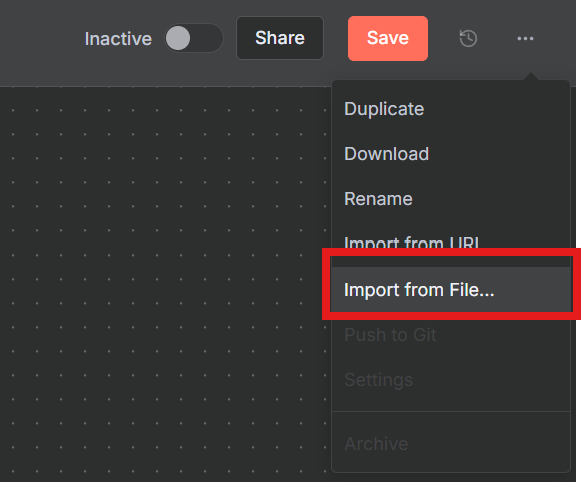
1-2. n8nで新規ワークフローを作成し、右上の「・・・」から、Import from File を選択し、保存したJSONファイルを選択します。
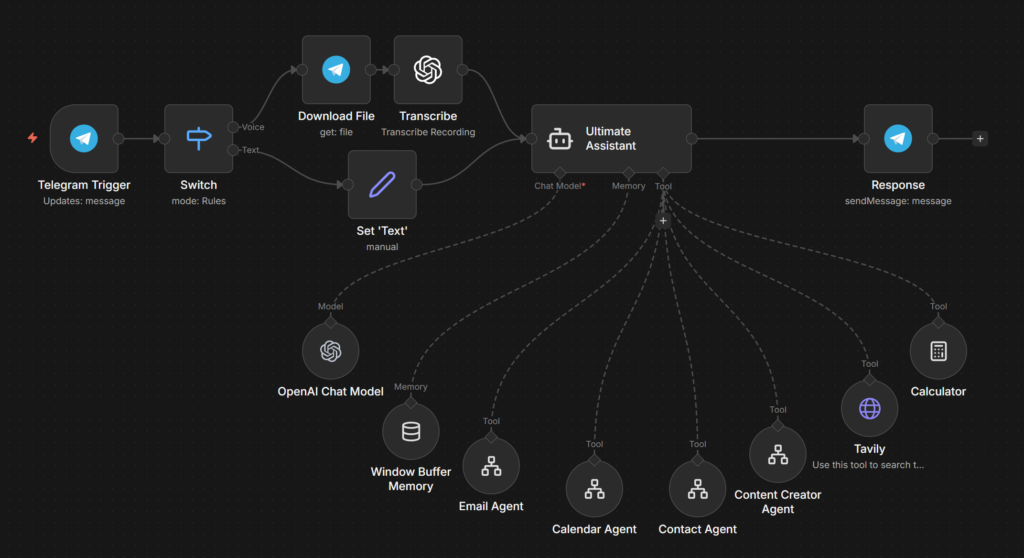
1-3. 全体のフロー接続が完成していることを確認します。
【ワークフローの構成】
このワークフローは以下のノードで構成されています。
| ノード名 | 役割 |
|---|---|
| Telegram Trigger | Telegramからのメッセージを受信 |
| Switch | 音声メッセージとテキストメッセージを振り分け |
| Download Voice File | 音声ファイルをダウンロード |
| Transcribe Audio | OpenAI Whisperで音声を文字起こし |
| Set ‘Text’ | テキストメッセージを統一フォーマットに変換 |
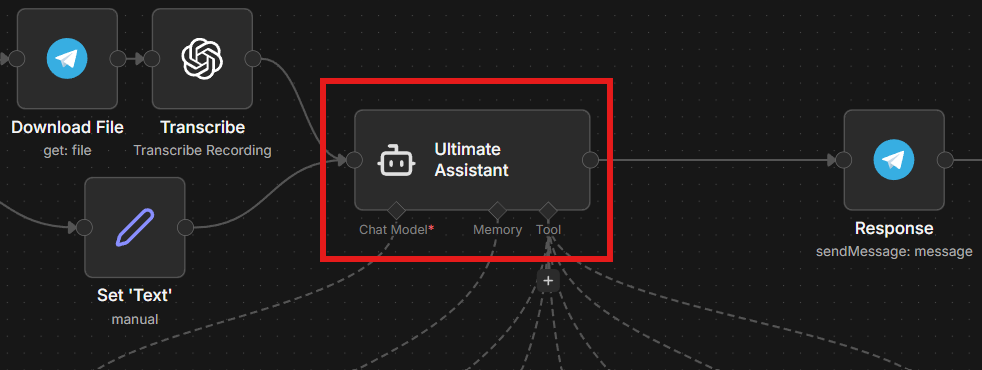
| Ultimate Assistant | 親エージェント(AIが指示を解釈し、適切なツールを呼び出す) |
| Response | 処理結果をTelegramに返信 |
| Simple Memory | 会話履歴を保持 |
| OpenAI Chat Model | LLMモデル(GPT-4o-mini等) |
| Email Agent / Calendar Agent / Contact Agent / Content Creator Agent | 子エージェント用のツールノード(後編で設定) |
【処理の流】
Telegram Trigger(メッセージ受信)
    ↓
Switch(振り分け)
    ├→ 音声の場合: Download Voice File → Transcribe Audio
    └→ テキストの場合: Set 'Text'
    ↓
Ultimate Assistant(親エージェント)
    ├→ 子エージェント(Email / Calendar / Contact / Content Creator)
    ├→ Tavily(Web検索)
    ├→ Calculator(計算)
    └→ Think(思考整理)
    ↓
Response(Telegramに返信)
Step 2:Telegram Botの作成
Telegramで専用のBotを作成し、n8nと連携するためのBot Tokenを取得します。
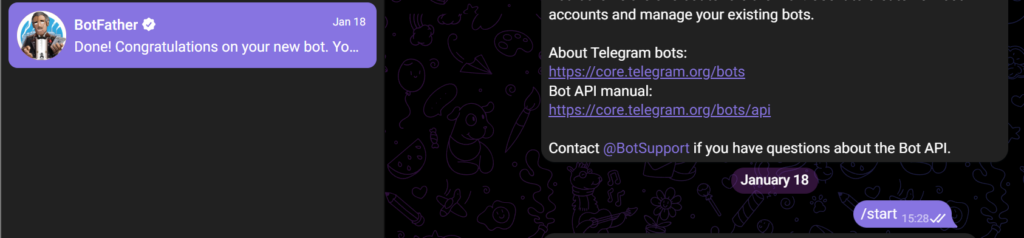
2-1. Telegramアプリで @BotFather を検索し、チャットを開始します。
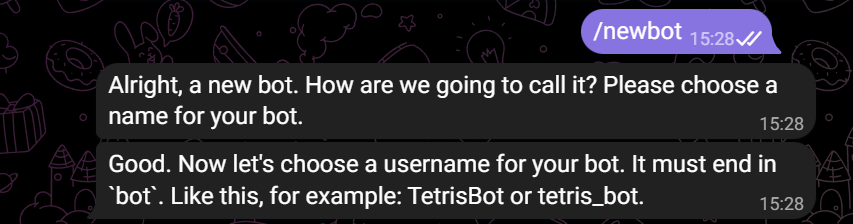
2-2. /newbot と入力して送信します。
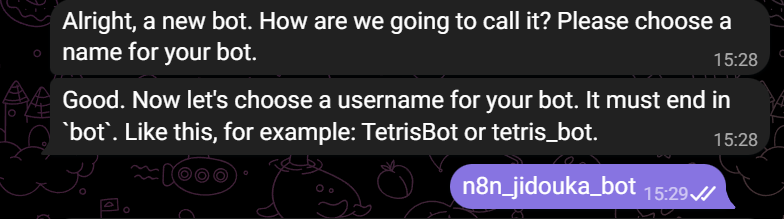
2-3. Botの表示名を入力します(例: my_pa_bot)。末尾は bot で終わる必要があります。
2-4. 作成が完了すると、Bot Token が表示されます。このTokenをコピーして保存してください。
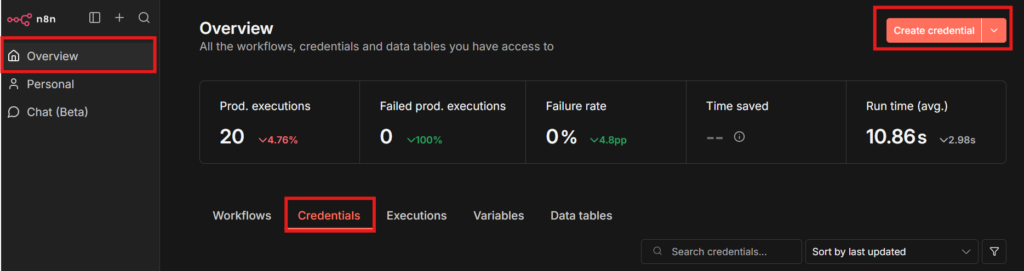
例: 1234567890:ABCdefGHIjklMNOpqrsTUVwxyz2-5. n8nを開き、Overview → Credentials → Create Credential をクリックします。
2-6. 「Telegram」を検索し、Telegram API を選択し、Continueをクリックします。
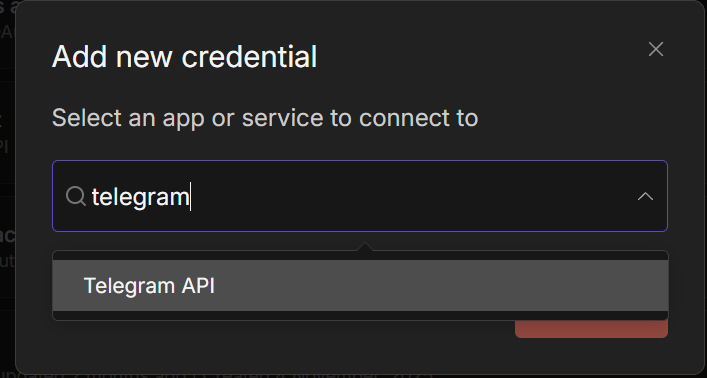
2-7. Access Token に先ほどコピーしたBot Tokenを貼り付け、保存します。
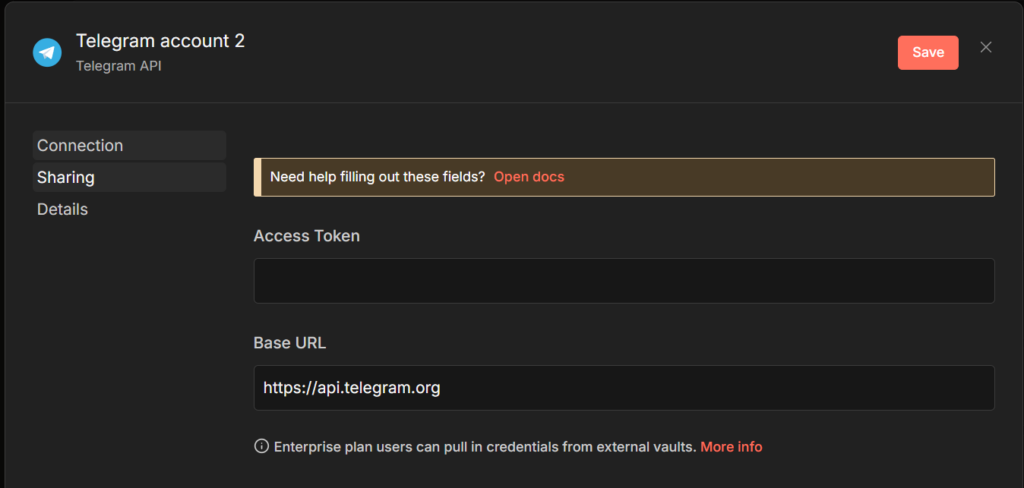
Step 3:OpenAI APIの設定
音声文字起こし(Whisper)で使用するOpenAI APIを設定します。
3-1. OpenAI Platform にログインし、右上のアカウントメニューからYourprofileをクリックします。

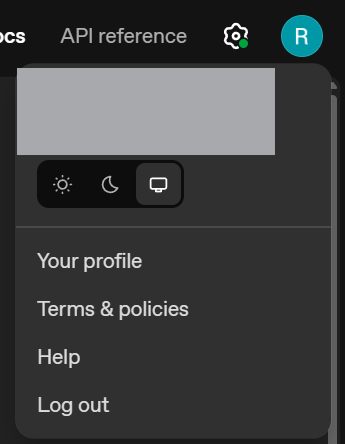
3-2. 左側のサイドバーから API Keys を選択します。
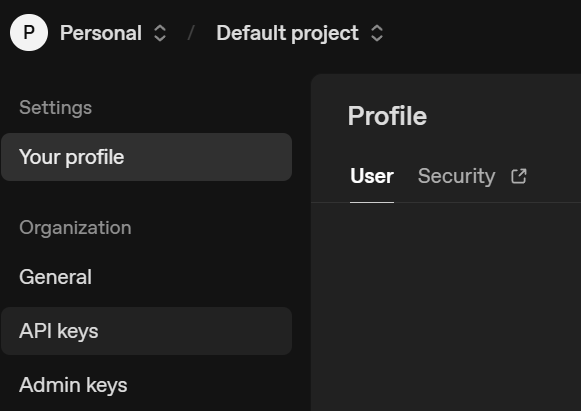
3-3. Create new secret key をクリックし、API Keyを生成します。生成されたAPI Keyをコピーして保存します(一度しか表示されません)。

3-4. 2-5.~2-7と同様にn8nでAPIの設定を実施します。
Step 4:Telegram Triggerの設定
インポートしたワークフローのTelegram Triggerを設定します。
4-1. キャンバス上の Telegram Trigger ノードをダブルクリックして開きます。
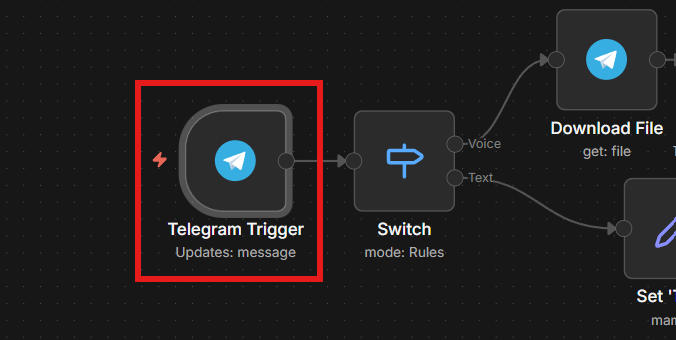
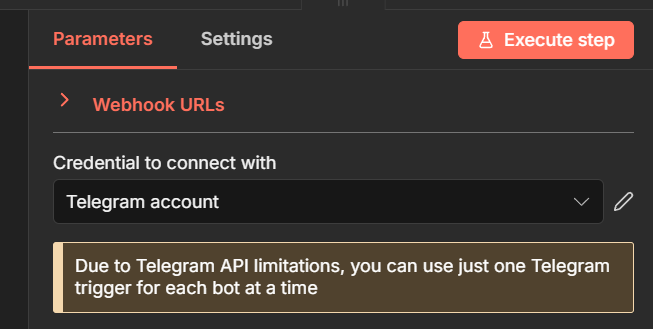
4-2. Credential to connect with で、Step 2で作成したTelegram認証情報を選択します。
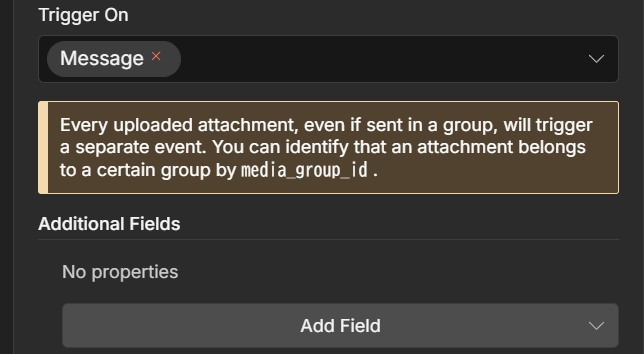
4-3. Trigger On が message になっていることを確認します。
4-4. ノードを閉じ、ワークフローを保存します。
Step 5:音声/テキスト振り分け(Switch)
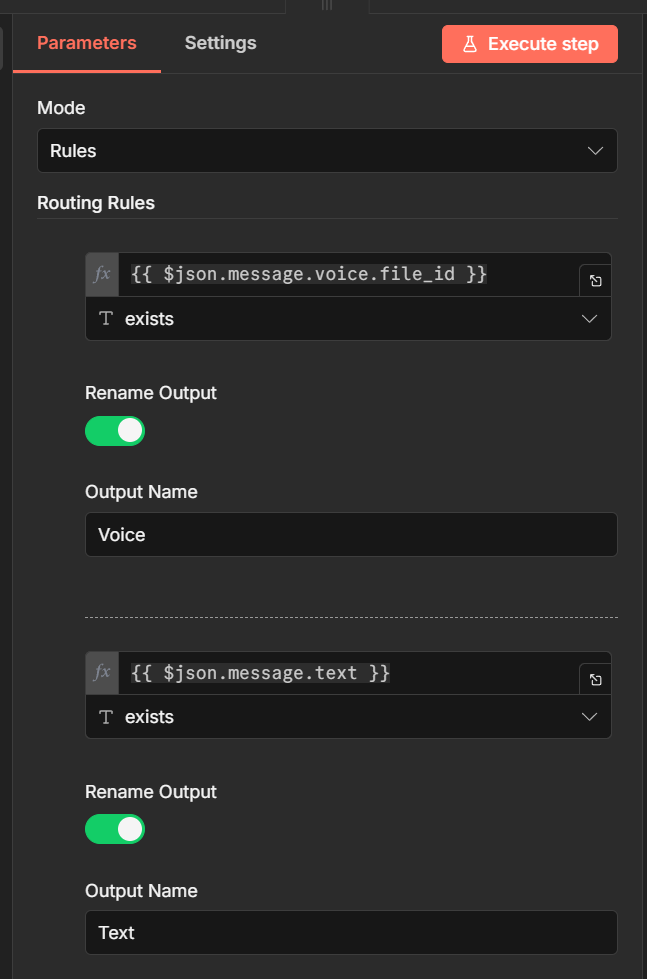
このワークフローでは、Switch ノードが入力を音声とテキストに振り分けます。
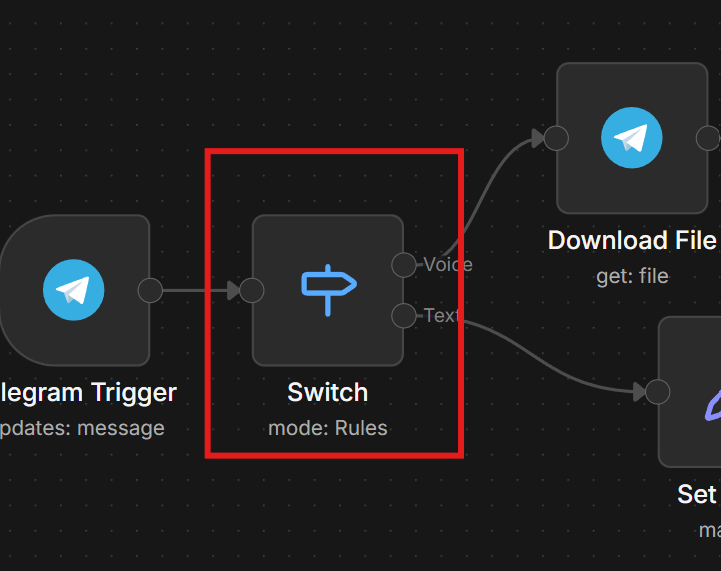
仕組みの解説:
Telegram Trigger
    ↓
Switch
    ├→ Voice(音声): message.voice.file_id が存在する場合
    └→ Text(テキスト): message.text が存在する場合
Switch ノードは以下の条件で分岐しています。
| ルート | 条件 |
|---|---|
| Voice | {{ $json.message.voice.file_id }} が存在する |
| Text | {{ $json.message.text }} が存在する |
音声の場合は文字起こし処理へ、テキストの場合は直接エージェントへ送られます。
n8nでは、以下のように設定されます。
Step 6:音声文字起こしの設定
音声メッセージを受け取った場合、OpenAI Whisperで文字起こしを行います。
処理の流れ:
Download Voice File → Transcribe Audio → Ultimate Assistant6-1. Download Voice File ノードをダブルクリックして開きます。
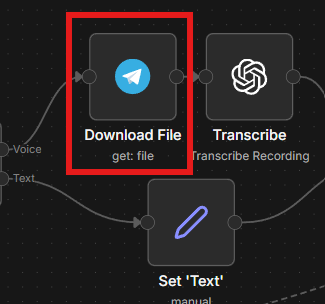
6-2. Credential to connect with で、Step 2で作成したTelegram認証情報を選択します。
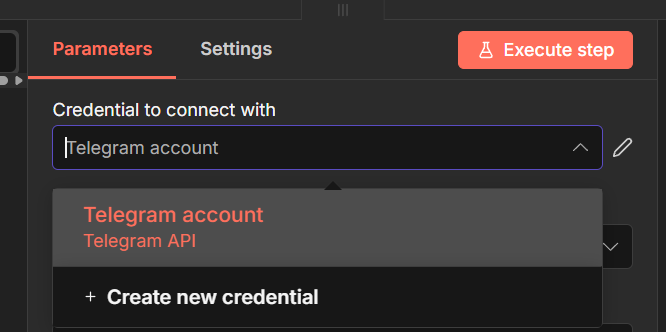
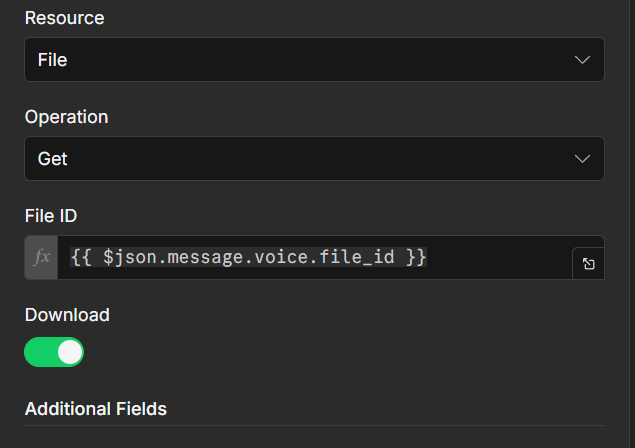
6-3. 他の設定では、ResourceをFile、OperationをGet、File IDは前段のtelegramの音声ファイルである{{ $json.message.voice.file_id }}で設定します。
6-4. Transcribe Audio ノードを開きます。
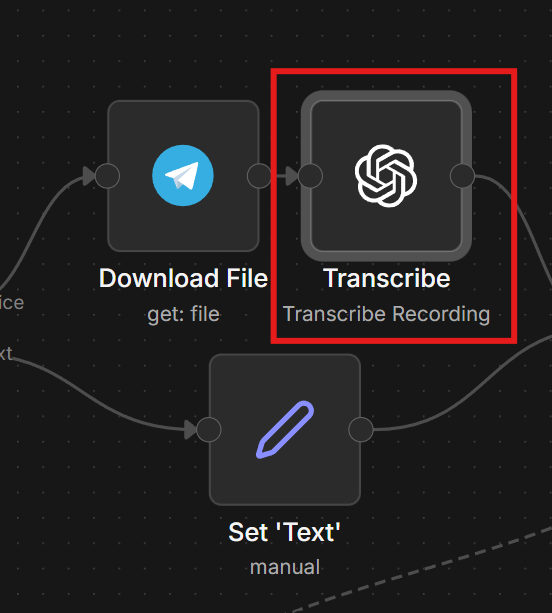
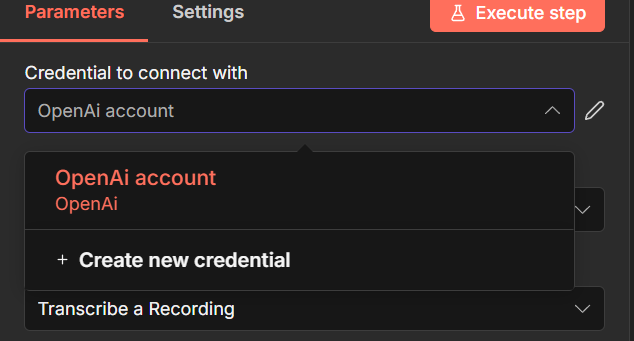
6-4. Credential to connect with で、Step 3で作成したOpenAI認証情報を選択します。
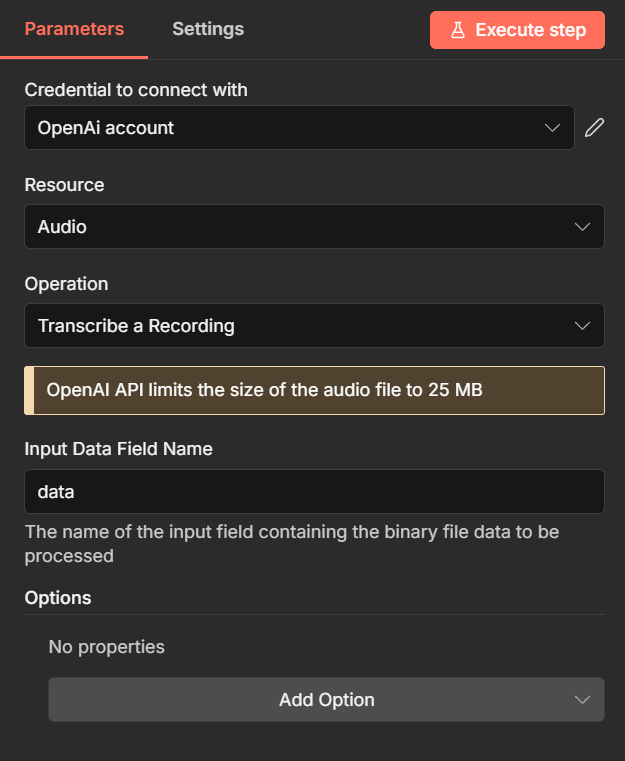
6-5. Resource が Audio、Operation が Transcribe 、Input Data Field Name が dataになっていることを確認します。
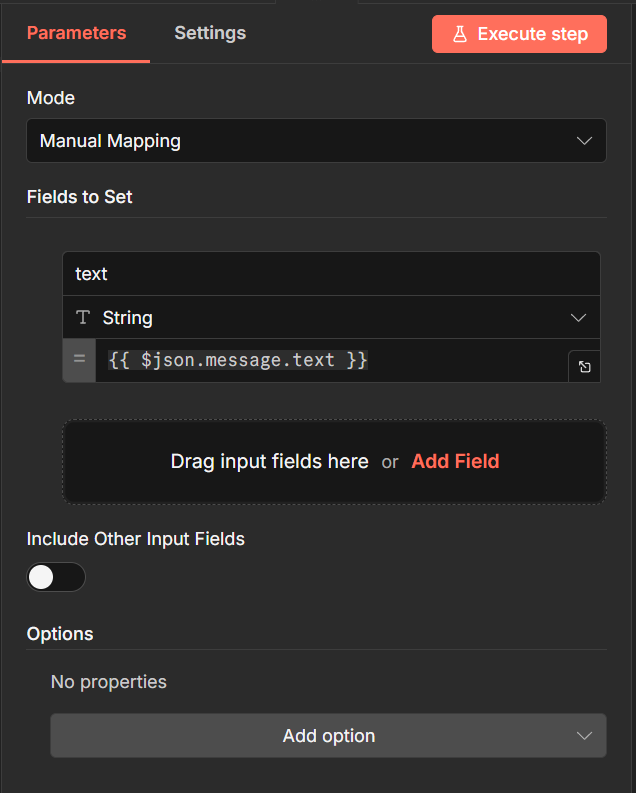
Step 7:テキスト正規化(Set ‘Text’)
テキスト入力と音声入力を統一した形式に揃えます。
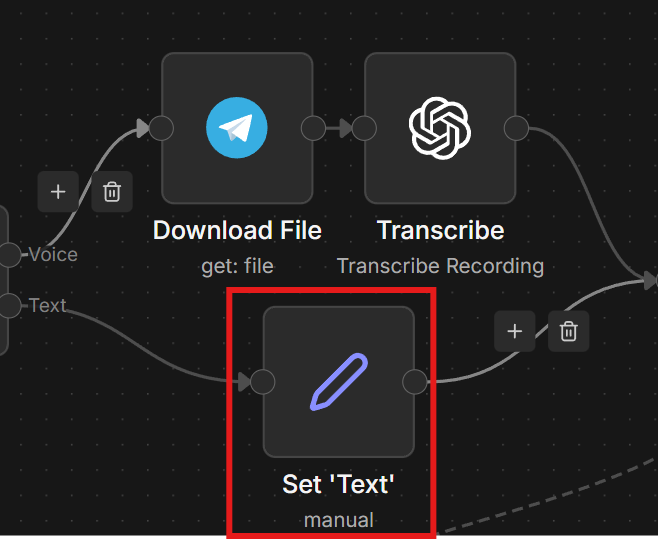
仕組みの解説:
- 音声ルート: Transcribe Audioの出力は
textフィールド - テキストルート:
Set 'Text'ノードでmessage.textをtextフィールドにマッピング
これにより、どちらのルートを通っても {{ $json.text }} でメッセージ内容を取得できるようになります。
n8nでは、以下のように設定されます。
Step 8:親エージェントの設定(Ultimate Assistant)
親エージェント(Ultimate Assistant)は、ユーザーの指示を解釈し、適切な子エージェントやツールに処理を振り分ける中心的な役割を担います。
8-1. Ultimate Assistant ノードをダブルクリックして開きます。
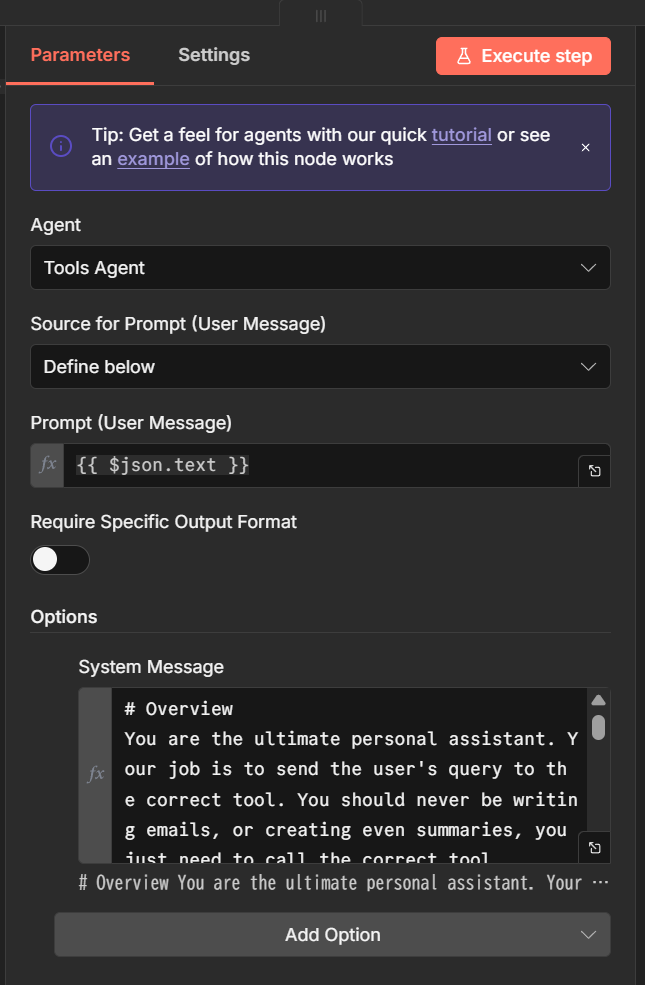
8-2. 以下のパラメータを確認します。
8-3. Options を展開し、System Message が設定されていることを確認します。
| パラメータ | 値 |
|---|---|
| Agent | Tool Agent |
| Source for Prompt(User Message) | Define below |
| Prompt(User Message) | {{ $json.text }} |
| System Message | ※入力されているか確認 |
このシステムメッセージには、エージェントの役割と使用可能なツール(emailAgent、calendarAgent、contactAgent、contentCreator、Tavily等)が定義されています。
ポイント: システムメッセージはJSONインポート時に自動設定されています。内容を変更したい場合は、このフィールドを編集してください。
n8nでは、以下のように設定されます。
Step 9:LLMモデルの設定(OpenAI Chat Model)
親エージェント(Ultimate Assistant)が使用するLLMモデルの認証を設定します。
9-1. OpenAI Chat Model ノードをダブルクリックして開きます。
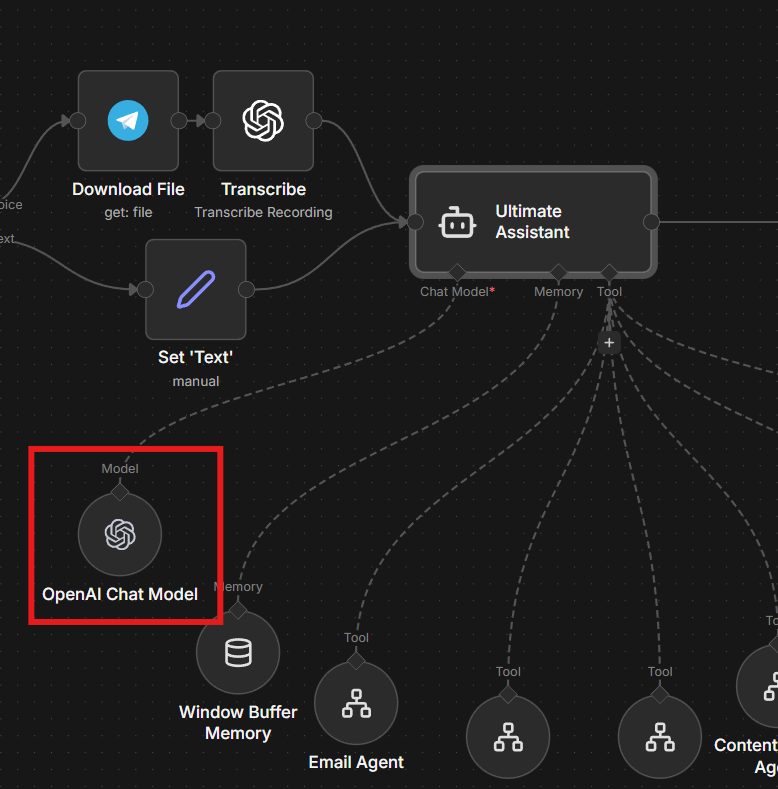
9-2. Credential to connect with で、Step 3で作成したOpenAI認証情報を選択します。
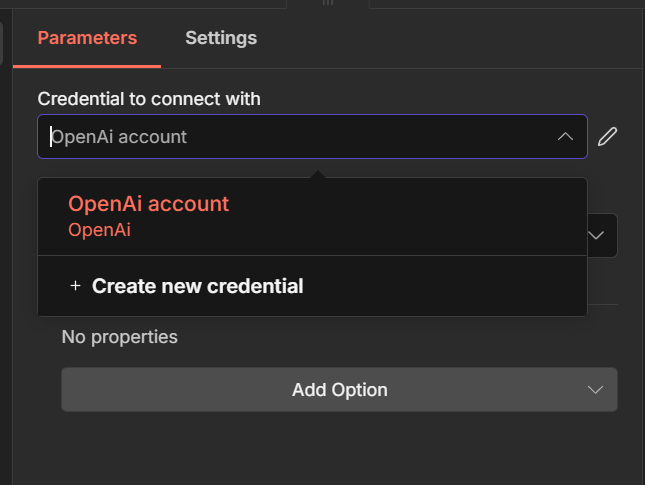
9-3. Model が gpt-4o-mini になっていることを確認します。
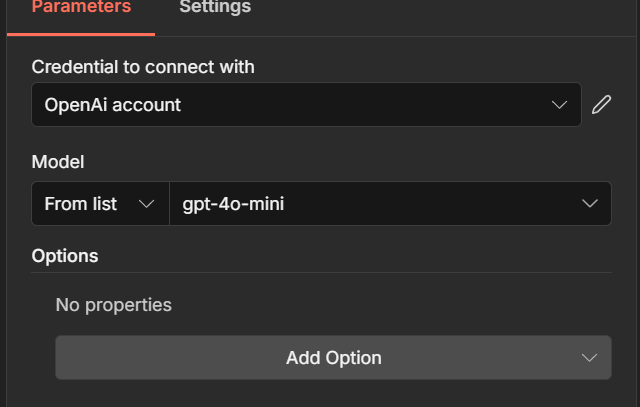
ポイント: GPT-4o-miniはコストパフォーマンスに優れたモデルです。より高精度な応答が必要な場合は gpt-4o に変更することもできます。
Step 10:メモリ設定(Simple Memory)
会話の文脈を保持するため、Simple Memory ノードを設定します。
10-1. Simple Memory ノードをダブルクリックして開きます。
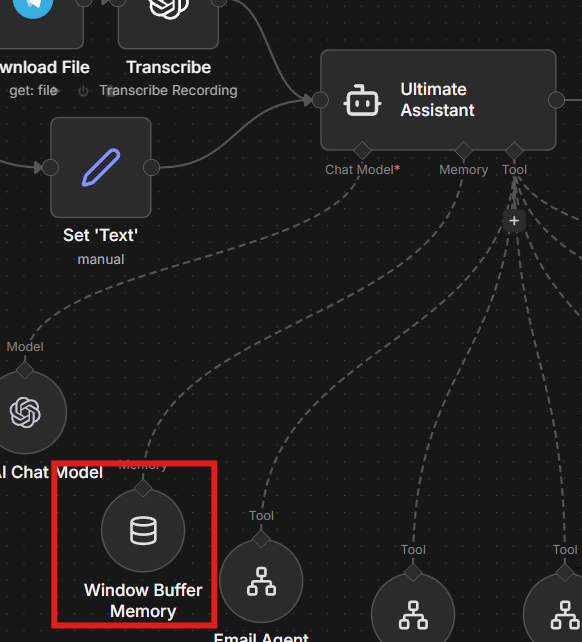
10-2. Session ID が Difine below になっていることを確認します。
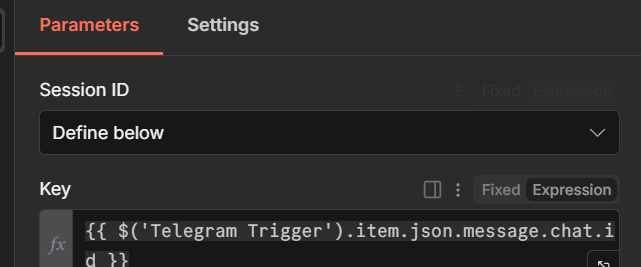
10-3. Key が以下のようになっていることを確認します:
{{ $('Telegram Trigger').item.json.message.chat.id }}この設定により、同じTelegramチャット内での会話履歴が保持されます。別のチャットとは独立したセッションになります。
Step 11:Responseノードの設定
処理結果をTelegramに返信するための設定です。
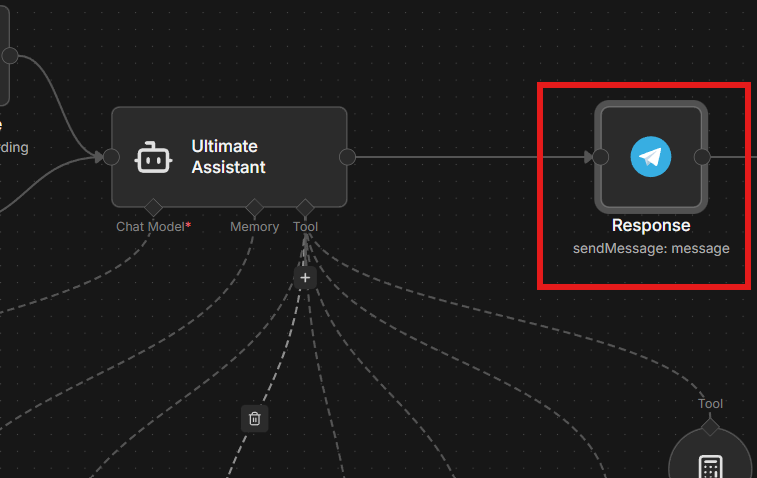
11-1. Response ノード(Telegramノード)をダブルクリックして開きます。
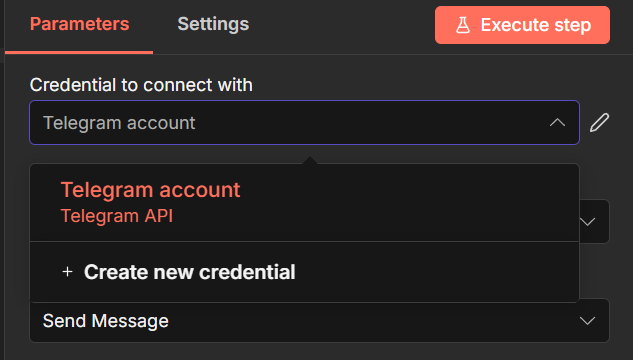
11-2. Credential to connect with で、Step 2で作成したTelegram認証情報を選択します。
11-3. 以下のパラメータを確認します:
| パラメータ | 値 |
|---|---|
| Chat ID | {{ $('Telegram Trigger').item.json.message.chat.id }} |
| Text | {{ $json.output }} |
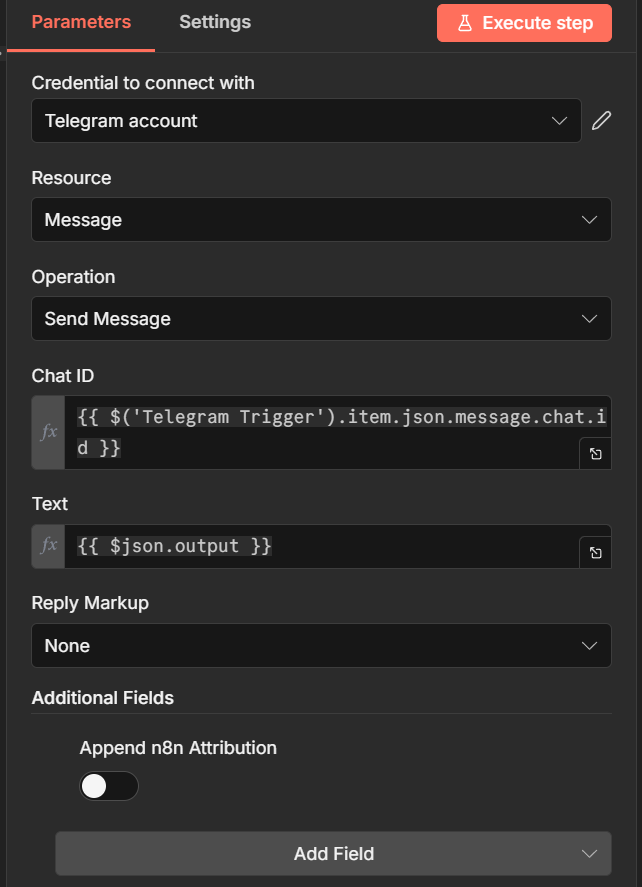
これにより、元のチャットにエージェントの応答が返信されます。
Step 12:動作確認
ここまでの設定が正しく動作するか確認します。
テキストメッセージのテスト:
12-1. Telegramで作成したBotを検索し、チャットを開始します。
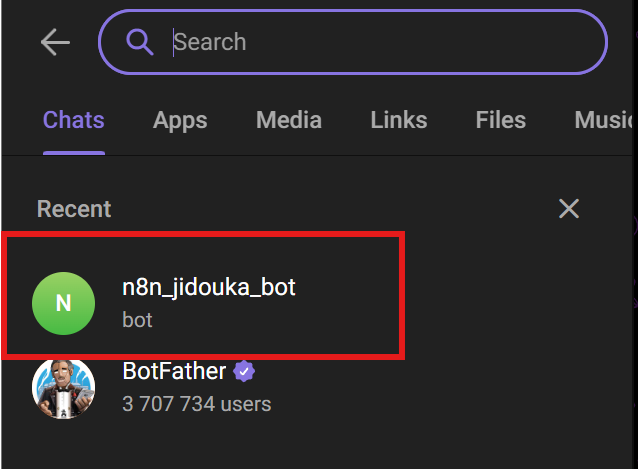
12-2. /start と送信してBotを有効化します。
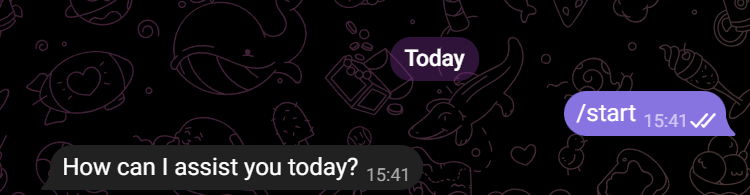
12-3. テキストメッセージを送信し、応答が適切か確認します。

音声メッセージのテスト:
12-4. Telegramで音声メッセージを送信します(マイクアイコンを長押し)。

12-5. 音声メッセージを送信し、応答が適切か確認します。
12-6. 両テストで問題がある場合は、n8nのワークフロー画面で Executions を開き、実行履歴を確認します。
注意: 現時点では子エージェント(Email / Calendar / Contact / Content Creator)が未設定のため、実際のタスク実行はできません。後編で子エージェントを設定すると、完全に動作するようになります。

よくある質問
- Telegram以外のメッセンジャー(LINE、Slack)でも使えますか?
-
はい、可能です。n8nにはLINE、Slack、Discordなど多くのメッセンジャーに対応したノードがあります。Triggerノードを差し替え、入出力の形式を調整することで、同様のシステムを構築できます。
- 音声認識の精度はどのくらいですか?
-
OpenAI Whisperは業界トップクラスの精度を持つ音声認識モデルです。日本語にも対応しており、一般的な会話であれば高い精度で認識できます。専門用語が多い場合は、認識結果を確認してから処理を進めることをおすすめします。
- n8nの無料プランで動きますか?
-
n8nクラウドの無料プランでは、月間の実行回数に制限があります。本格的に使用する場合は有料プランへのアップグレード、またはセルフホスト版の利用を検討してください。セルフホスト版はサーバー費用のみで利用できます。
つまずきやすいポイント
- Telegram Webhookが設定されない: ワークフローをActiveにしても反応しない場合は、Telegram Triggerノードを一度開いて再保存してください。
- 音声ファイルがダウンロードできない: Bot Tokenが正しく設定されているか確認してください。また、Botに送信された音声ファイルへのアクセス権限があるか確認してください。
- メモリが保持されない: Session Keyの式が正しく設定されているか確認してください。
$('Telegram Trigger')の部分は、実際のノード名と一致している必要があります。
なかなかうまくいかないときは?
n8nのワークフロー設定やAPI連携がうまくいかない、エラーの原因がわからないといったことはありませんか?特に複数のサービスを連携させる場合、認証情報やWebhookの設定でつまずくことがあります。
そこで、おすすめしたいのが「ジドウカ」です。
ジドウカは、これまで合計800タスク以上の業務の自動化をしてきた実績のある法人専用の自動化サービスです。

業務の一部を”タスク単位”で自動化し、【月額1万円から】安定運用できるサブスクリプション型のサービスです。
技術のことが分からなくても「こういう作業をラクにしたい」と伝えるだけで自動化することが可能です。
「自分のやりたい自動化って本当に実現できるのかな…」という方には、
少額・短期間での「お試し開発」があるので、お気軽にご活用ください。
まとめ
前編では、以下の内容を構築しました。
- Telegram Bot の作成と認証情報の設定
- OpenAI API の設定(音声文字起こし・LLMモデル用)
- 親ワークフロー のインポートと設定
- Telegram Trigger / Response
- 音声・テキストの振り分け(Switch)
- 音声文字起こし(Whisper)
- 親エージェントの設定(Ultimate Assistant)
- LLMモデルの設定(OpenAI Chat Model)
- 会話履歴の保持(Simple Memory)
これで、Telegramからのメッセージを受け取り、親エージェントが処理する「土台」が完成しました。
後編では、いよいよ子エージェント層を構築します。
- Email Agent(メール操作)
- Calendar Agent(カレンダー操作)
- Contact Agent(連絡先管理)
- Content Creator Agent(ブログ記事生成)
4つの子エージェントが親エージェントと連携し、自然言語の指示でさまざまなタスクを自動実行できるようになります。お楽しみに!